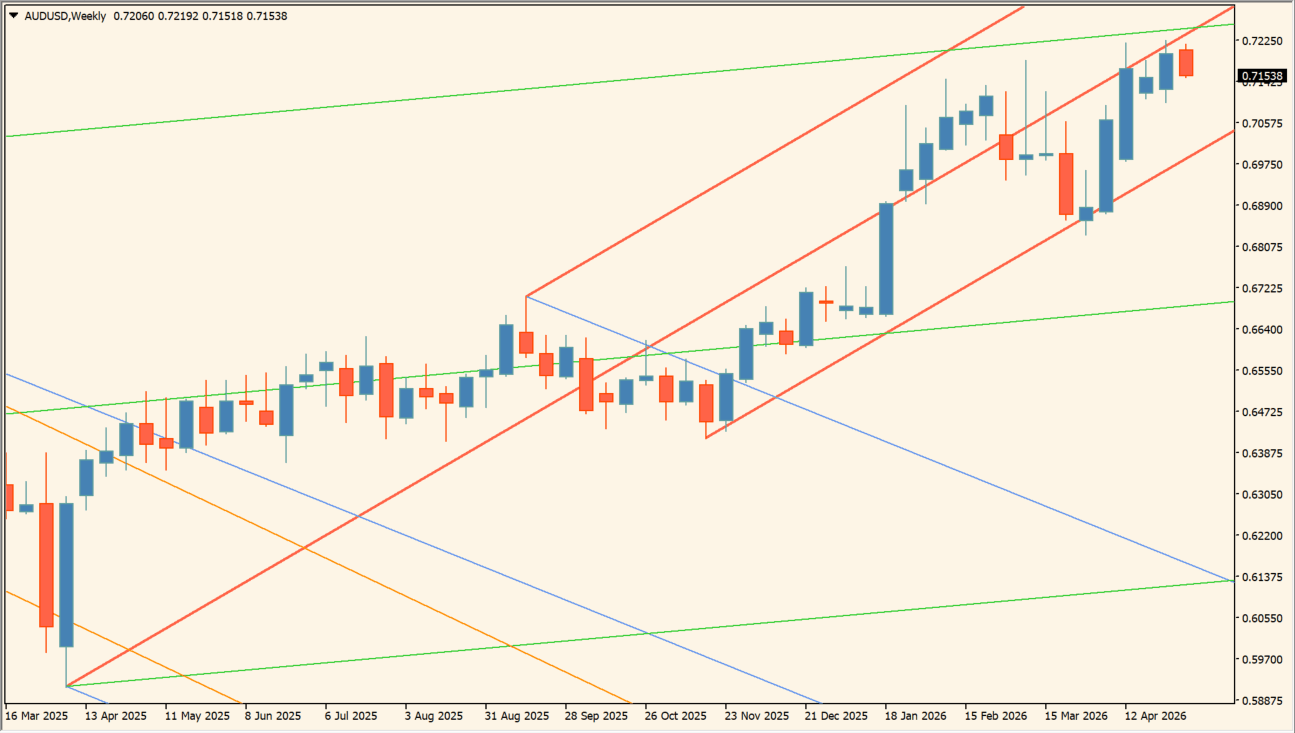
What is Auto Pitchfork?
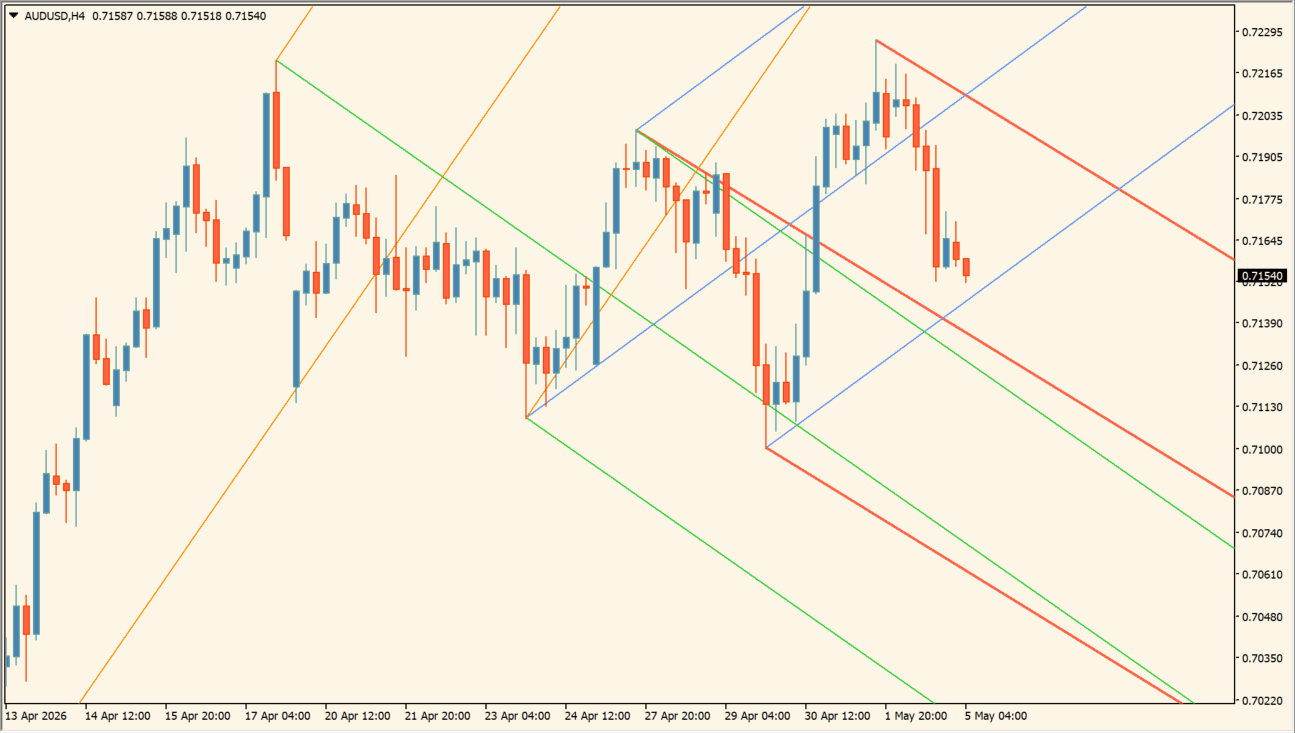
Auto Pitchfork finds swing points from ZigZag and draws several pitchforks automatically. The median and outer lines provide a channel-style view of trend direction and possible support or resistance areas.
The indicator includes Andrews, Schiff, and Modified Schiff types, and higher timeframes such as H1 can produce steadier lines. The display is a way to organize channel geometry, not a promise that price must return to a line.
How to use Auto Pitchfork
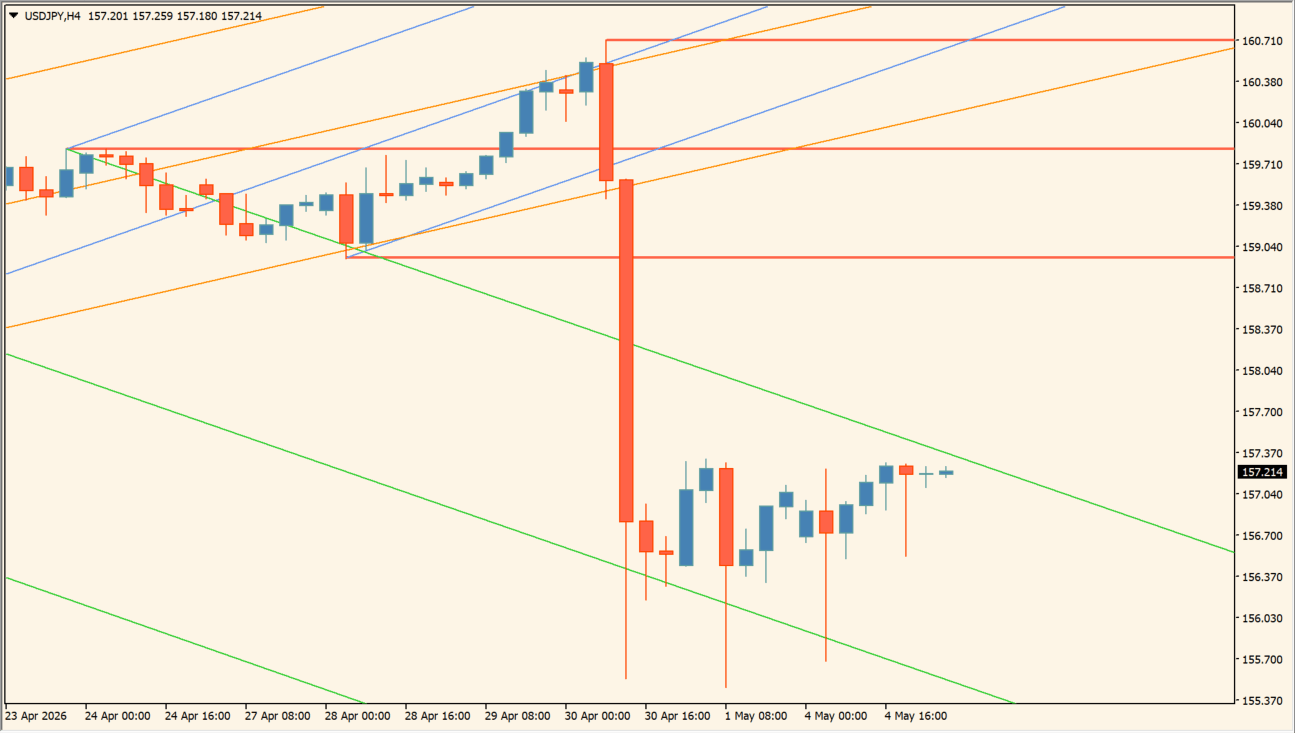
Apply Auto Pitchfork to an MT4 chart and select the pitchfork type and ZigZag timeframe before comparing the displayed channels with recent swings.
Use Number_of_Pitchforks, ZZ_ExtDepth, ZZ_ExtDeviation, ZZ_ExtBackstep, line widths, and Last color inputs to control detection and presentation.
Where it helps
Builds pitchforks from detected ZigZag points instead of requiring every anchor to be placed manually.
Supports Andrews, Schiff, and Modified Schiff constructions.
Provides separate width and color inputs for the displayed pitchfork lines.
MT4 Indicator Parameters
The table below lists the available MT4 indicator parameters. You can customize these options in the MetaTrader Inputs dialog to match your trading preferences.
| Parameter | Description |
|---|---|
| _IndicatorSetup_ | Settings section. |
| AutoRefresh | Enables or disables this display option. Default: true. |
| Help_For_Number_of_Pitchforks | Sets this calculation or display option. Default: "Maximum: 100". |
| Number_of_Pitchforks | Sets this calculation or display option. Default: 4. |
| Help_For_Pitchfork_Type | Sets this calculation or display option. Default: "Andrews: 0. |
| Pitchfork_Type | Sets this calculation or display option. Default: 0. |
| ZZ_TimeFrame | Sets this calculation or display option. Default: 0. |
| ZZ_ExtDepth | Sets this calculation or display option. Default: 12. |
| ZZ_ExtDeviation | Controls this indicator option. Default: 5. |
| ZZ_ExtBackstep | Enables or disables this display option. Default: 3. |
| _DisplaySetup_ | Settings section. |
| Line1_Width | Sets the display width or text size. Default: 2. |
| Line2_Width | Sets the display width or text size. Default: 1. |
| Line3_Width | Sets the display width or text size. Default: 1. |
| Line4_Width | Sets the display width or text size. Default: 1. |
| Line5_Width | Sets the display width or text size. Default: 1. |
| Last1_Color | Sets the display color for this option. Default: Tomato. |
| Last2_Color | Sets the display color for this option. Default: CornflowerBlue. |
| Last3_Color | Sets the display color for this option. Default: LimeGreen. |
| Last4_Color | Sets the display color for this option. Default: DarkOrange. |
| Last5_Color | Sets the display color for this option. Default: Orchid. |
| MoreLine_Width | Sets the display width or text size. Default: 1. |
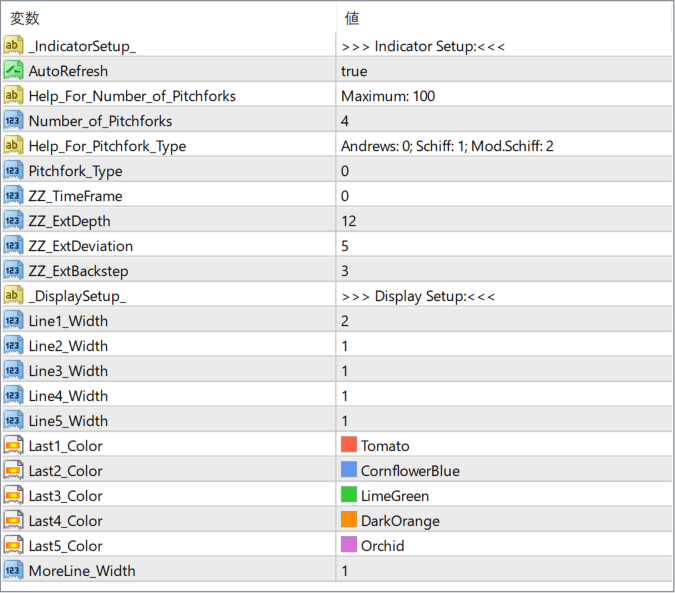
The screenshot above shows the default input parameters in the MT4 settings window.
How to Install .ex4 Indicator in MetaTrader 4
- Download the ZIP file and extract it.
- In MT4, select File → Open Data Folder.
- Open MQL4 → Indicators and copy the EX4 or MQ4 file into it.
- If the package includes library files, copy them to MQL4 → Libraries. Copy TPL files to the top-level templates folder.
- Restart MT4, find the indicator in the Navigator, and drag it onto a chart.
Test the tool on a demo account first. File contents and required folders can vary between packages.


