What is synthetic-rsi-indicator?
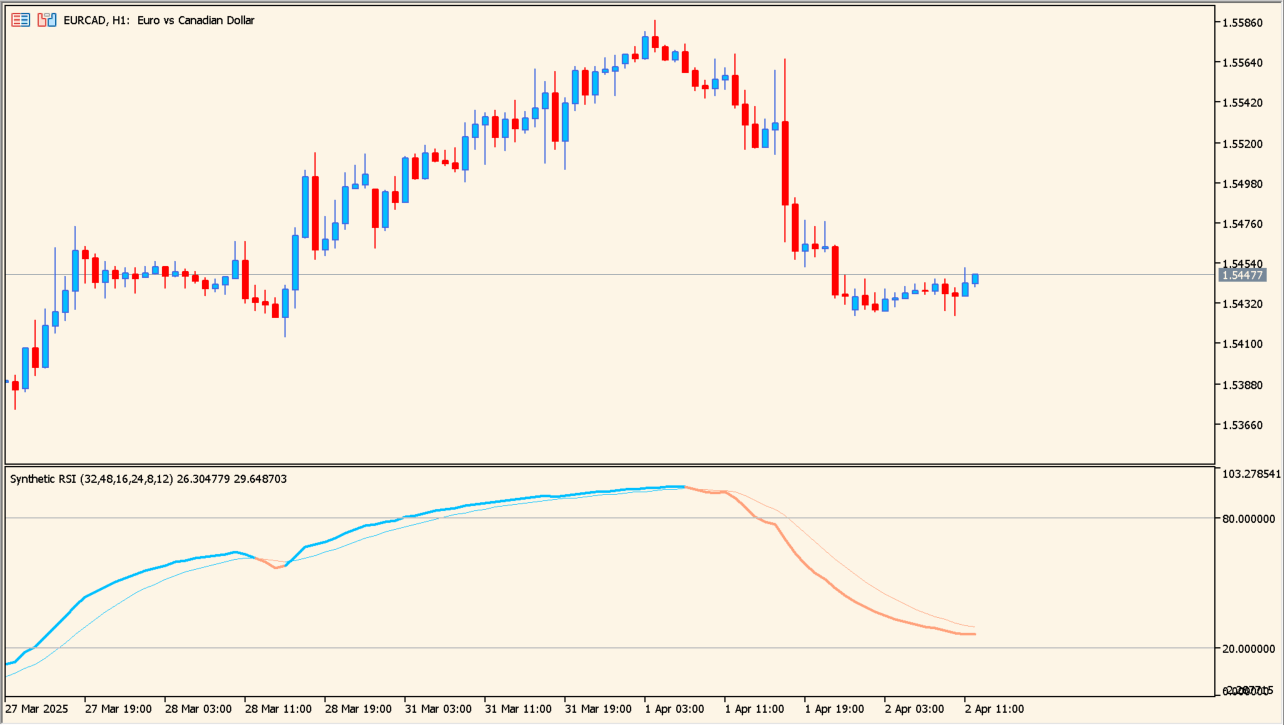
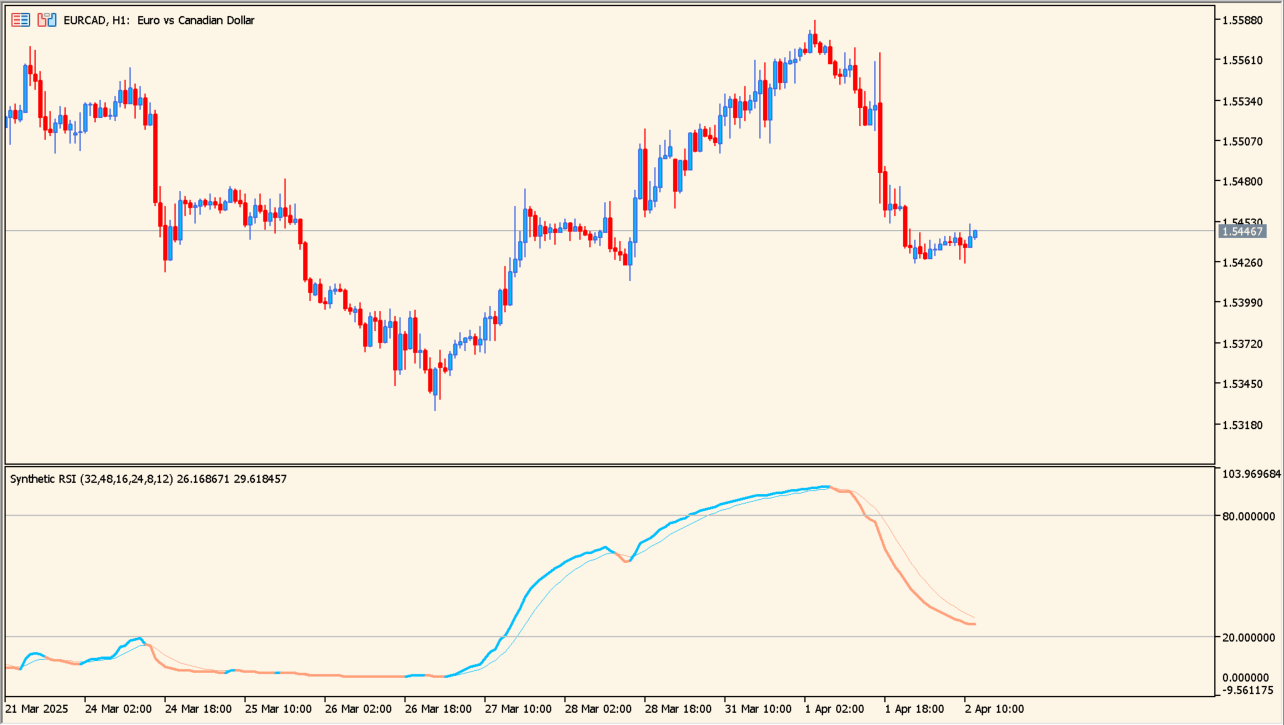
synthetic-rsi-indicator combines three RSI calculations with EMA smoothing and a signal period. The resulting oscillator is not constrained in exactly the same way as a standard 0 to 100 RSI, but it is intended to serve as a smoother RSI-style view.
A light-blue rising state and an orange falling state are displayed, and the reading tends to stay near the upper area during an upward trend. Its purpose is to make persistence and reversal easier to compare.
How to use synthetic-rsi-indicator
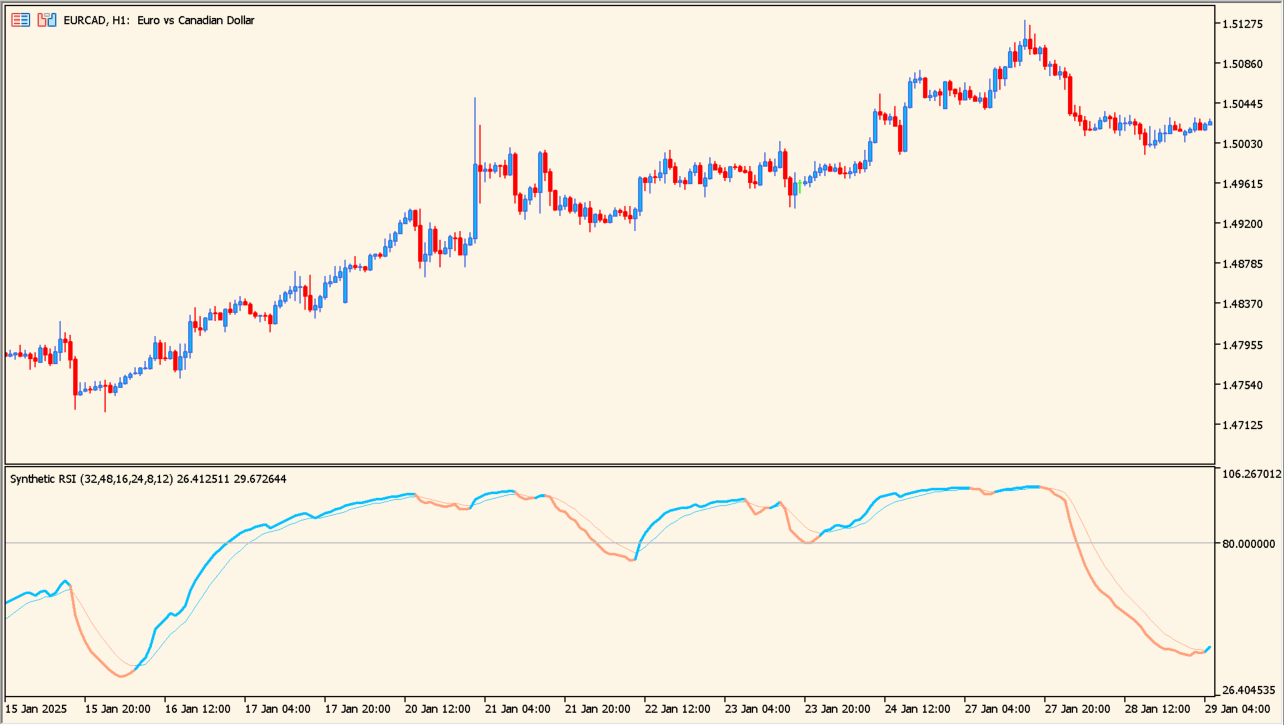
Add synthetic-rsi-indicator to an MT5 chart and compare its colored state with the current trend and recent momentum.
Adjust the three EMA and RSI period pairs, Price, and inpSignalPeriod to compare smoothing and responsiveness while keeping the source input names intact.
Where it helps
Combines several RSI and EMA windows into one oscillator view.
Separates rising and falling states with visible colors.
Provides an RSI-style reading without forcing the same fixed upper and lower bounds.
MT5 Indicator Parameters
The table below lists the available MT5 indicator parameters. You can customize these options in the MetaTrader Inputs dialog to match your trading preferences.
| Parameter | Description |
|---|---|
| inpEmaPeriod1 | Sets this calculation or display option. Default: 48. |
| inpRsiPeriod1 | Sets this calculation or display option. Default: 32. |
| inpEmaPeriod2 | Sets this calculation or display option. Default: 24. |
| inpRsiPeriod2 | Sets this calculation or display option. Default: 16. |
| inpEmaPeriod3 | Sets this calculation or display option. Default: 12. |
| inpRsiPeriod3 | Sets this calculation or display option. Default: 8. |
| inpPrice | Sets this calculation or display option. Default: PRICE_CLOSE. |
| inpSignalPeriod | Sets this calculation or display option. Default: 8. |
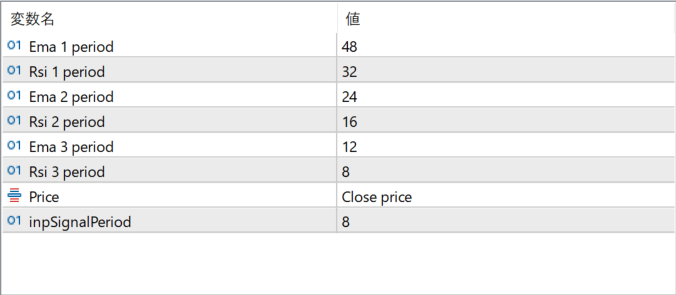
The screenshot above shows the default input parameters in the MT5 settings window.
How to Install .ex5 Indicator in MetaTrader 5
- Download the ZIP file and extract it.
- In MT5, select File → Open Data Folder.
- Open MQL5 → Indicators and copy the EX5 or MQ5 file into it.
- If the package includes library files, copy them to MQL5 → Libraries. Copy TPL files to the top-level templates folder.
- Restart MT5, find the indicator in the Navigator, and drag it onto a chart.
Test the tool on a demo account first. File contents and required folders can vary between packages.