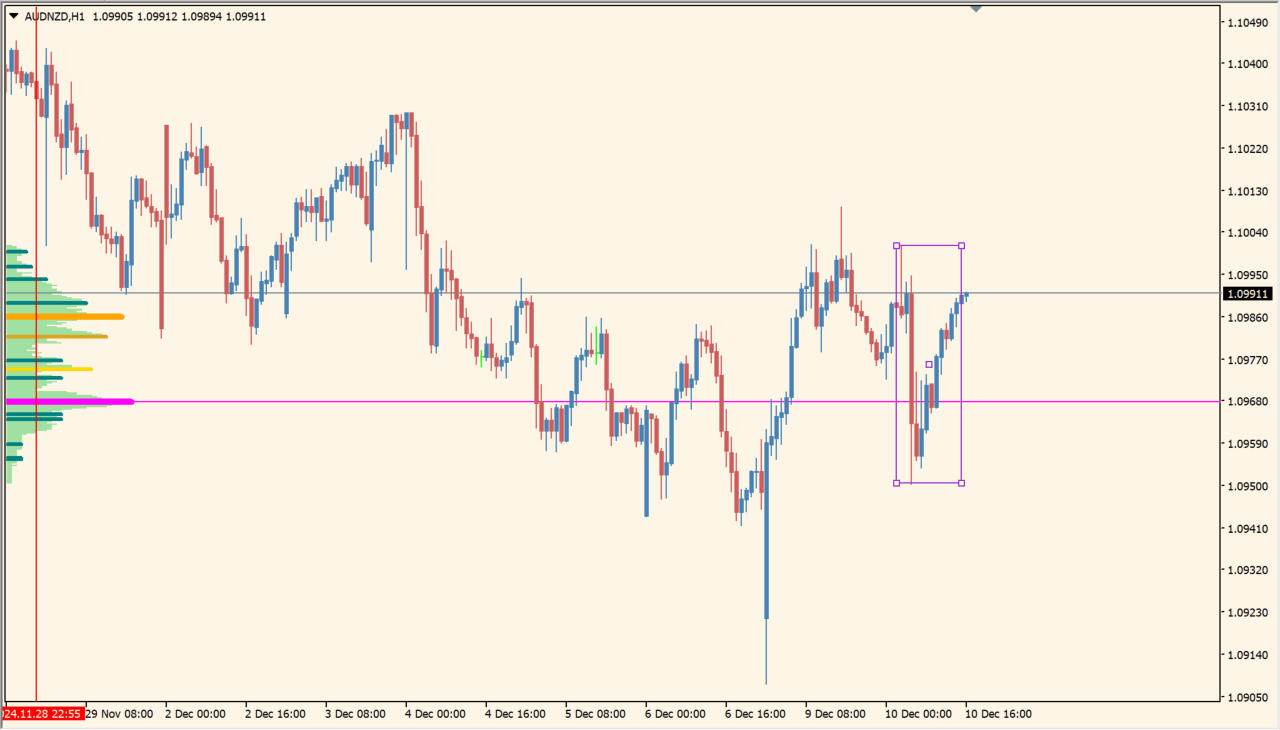
What is tpo2?
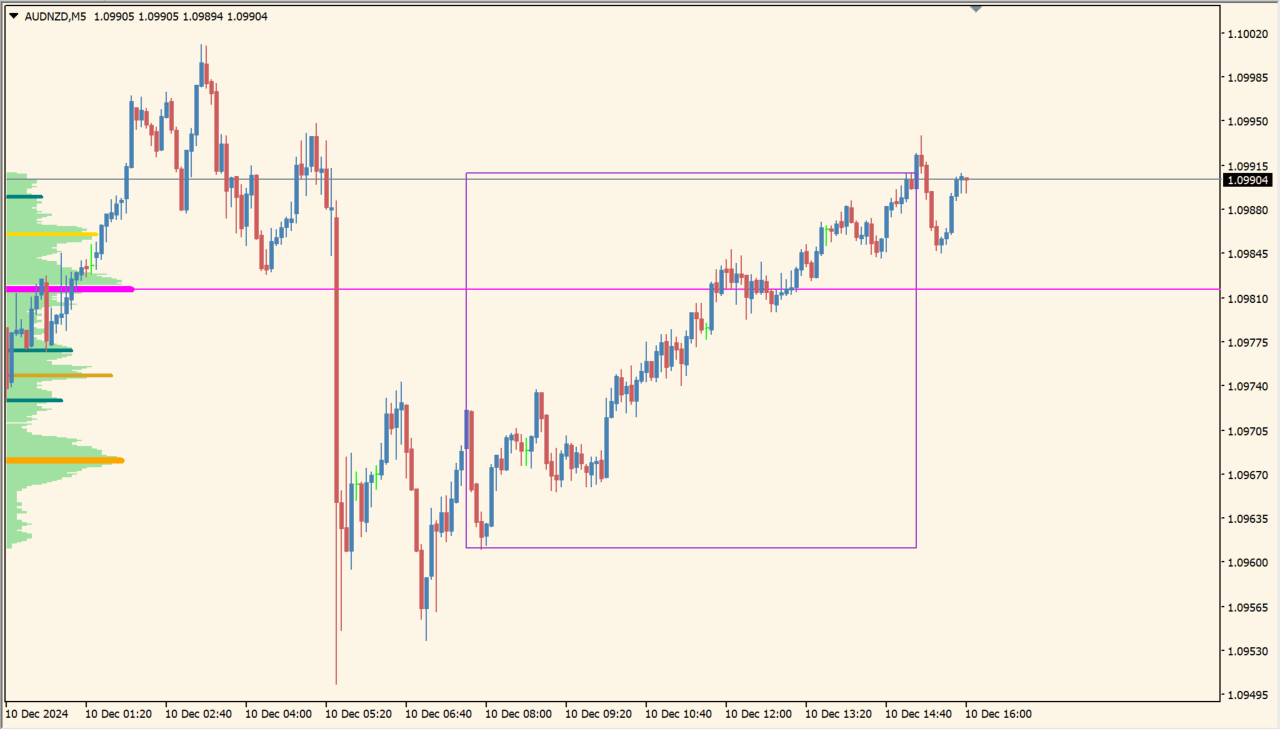
tpo2 creates a volume-profile-style display by counting ticks across the selected price and time rectangle. Its horizontal profile shows where activity was concentrated, even though this is not exchange volume.
The rectangle can be widened or narrowed to change the calculation period. Lines can mark high-activity areas, which provide support and resistance context to compare with other horizontal levels.
How to use tpo2
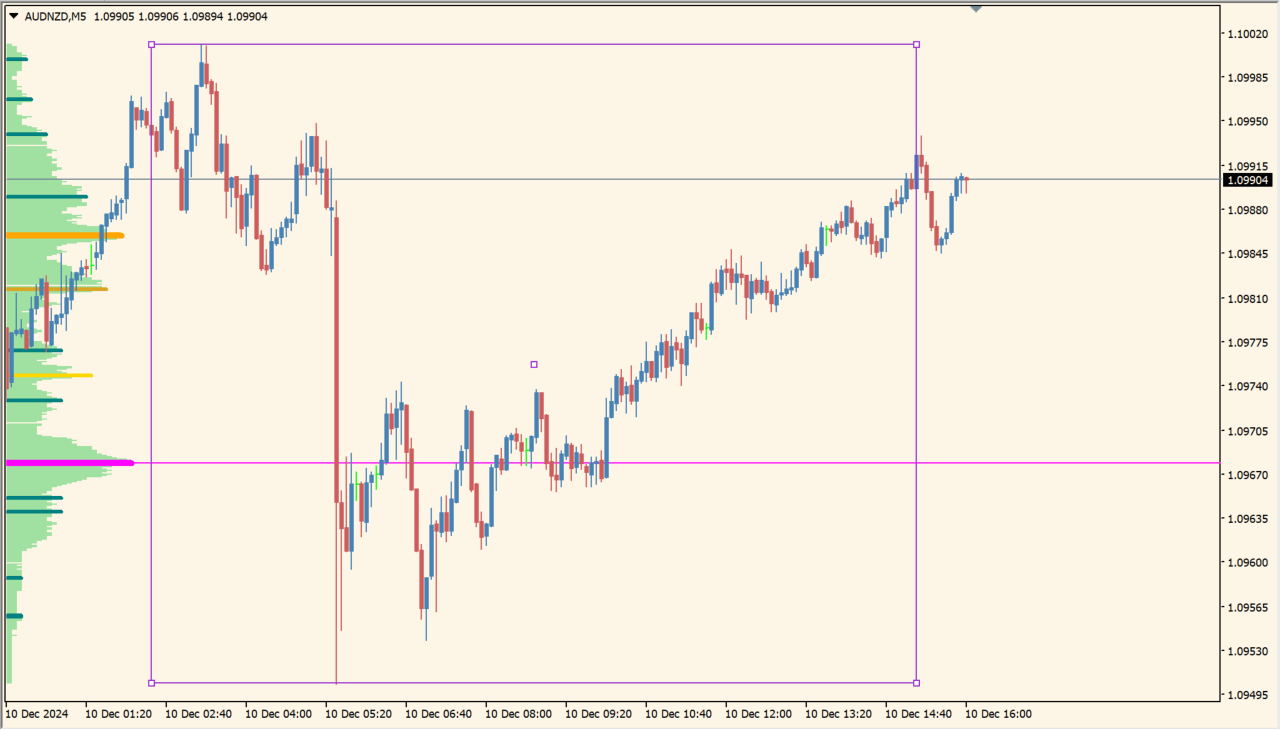
Place tpo2 on an MT4 chart and adjust the rectangle to define the period whose tick distribution you want to inspect.
Use showLineSisla1 through showLineSisla3 for high-volume lines, ModeStep for the profile style, and Smooth to adjust the appearance of the distribution.
Where it helps
The rectangle lets the displayed volume distribution be reviewed over a chosen window.
Marks price areas with more counted ticks for comparison with other chart levels.
Makes the source limitation clear while preserving the profile-style view.
MT4 Indicator Parameters
The table below lists the available MT4 indicator parameters. You can customize these options in the MetaTrader Inputs dialog to match your trading preferences.
| Parameter | Description |
|---|---|
| Id | Controls this indicator option. Default: "+tp_1". |
| showLineSiska1 | Enables or disables this display option. Default: false. |
| showLineSiska2 | Enables or disables this display option. Default: false. |
| showLineSiska3 | Enables or disables this display option. Default: false. |
| ModeStep | Sets this calculation or display option. Default: 1. |
| Smooth | Controls this indicator option. Default: 0. |
| PriceStep | Sets this calculation or display option. Default: 1. |
| ShowHorizon | Enables or disables this display option. Default: true. |
| HGColor | Sets the display color for this option. Default: C'160. |
| HGStyle | Sets this calculation or display option. Default: 0. |
| ModeColor | Sets the display color for this option. Default: Teal. |
| MaxModeColor | Sets the display color for this option. Default: Magenta. |
| Siska1ModeColor | Sets the display color for this option. Default: Orange. |
| Siska2ModeColor | Sets the display color for this option. Default: Goldenrod. |
| Siska3ModeColor | Sets the display color for this option. Default: Gold. |
| ModeLevelColor | Sets the display color for this option. Default: Magenta. |
| MaxModeLevelWidth | Sets the display width or text size. Default: 5. |
| Siska1Width | Sets the display width or text size. Default: 5. |
| Siska2Width | Sets the display width or text size. Default: 3. |
| Siska3Width | Sets the display width or text size. Default: 3. |
| ModeLevelStyle | Sets this calculation or display option. Default: 2. |
| RectangleColor | Sets the display color for this option. Default: DarkOrchid. |
| Rectangleback | Enables or disables this display option. Default: false. |
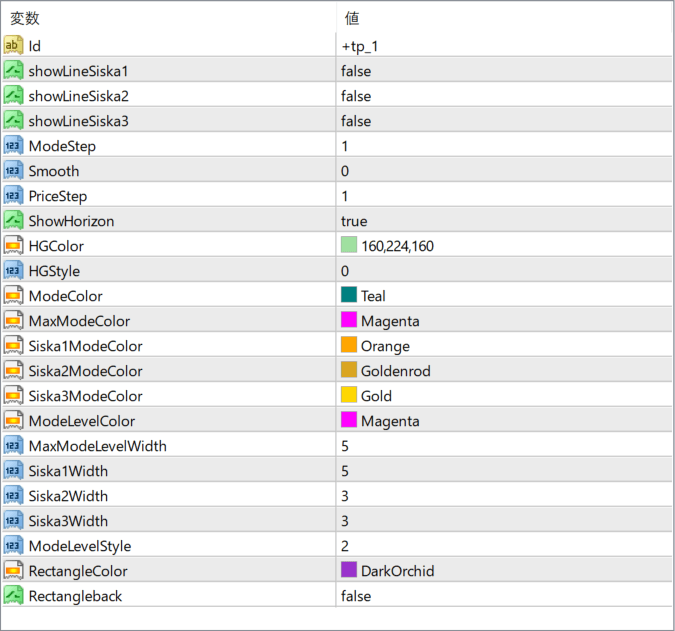
The screenshot above shows the default input parameters in the MT4 settings window.
How to Install .ex4 Indicator in MetaTrader 4
- Download the ZIP file and extract it.
- In MT4, select File → Open Data Folder.
- Open MQL4 → Indicators and copy the EX4 or MQ4 file into it.
- If the package includes library files, copy them to MQL4 → Libraries. Copy TPL files to the top-level templates folder.
- Restart MT4, find the indicator in the Navigator, and drag it onto a chart.
Test the tool on a demo account first. File contents and required folders can vary between packages.


