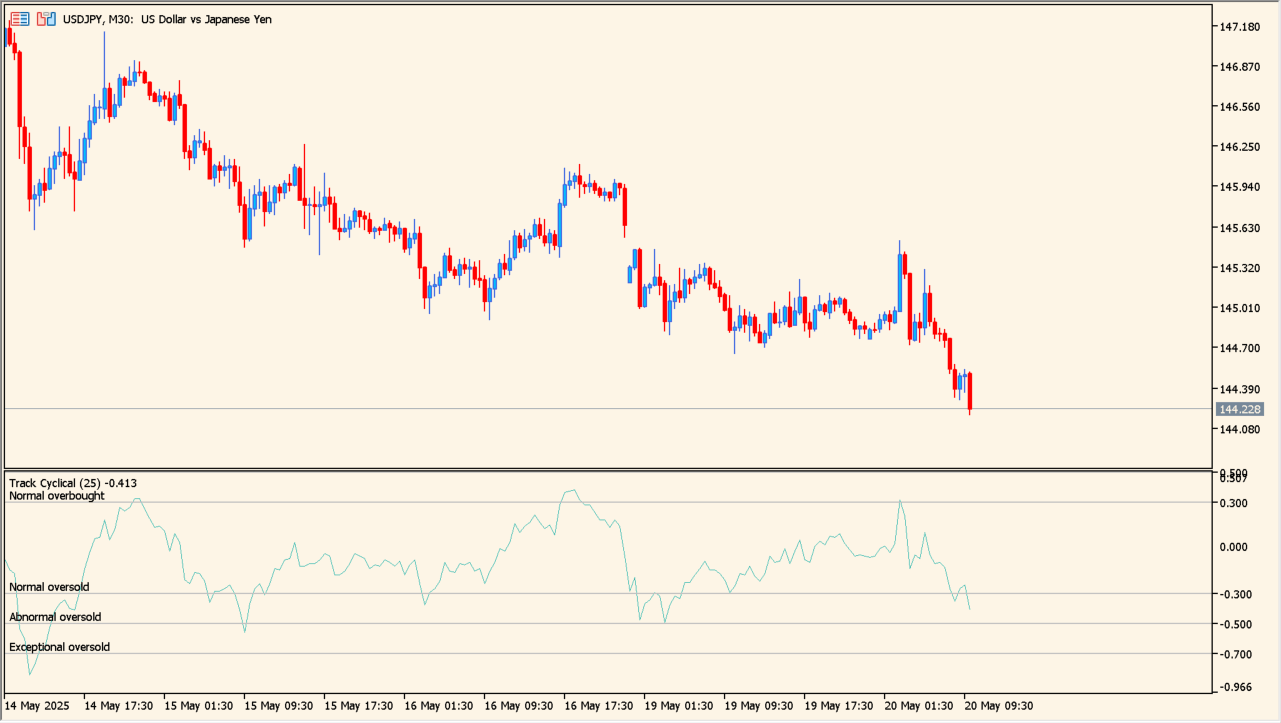
What is Track_Cyclical?
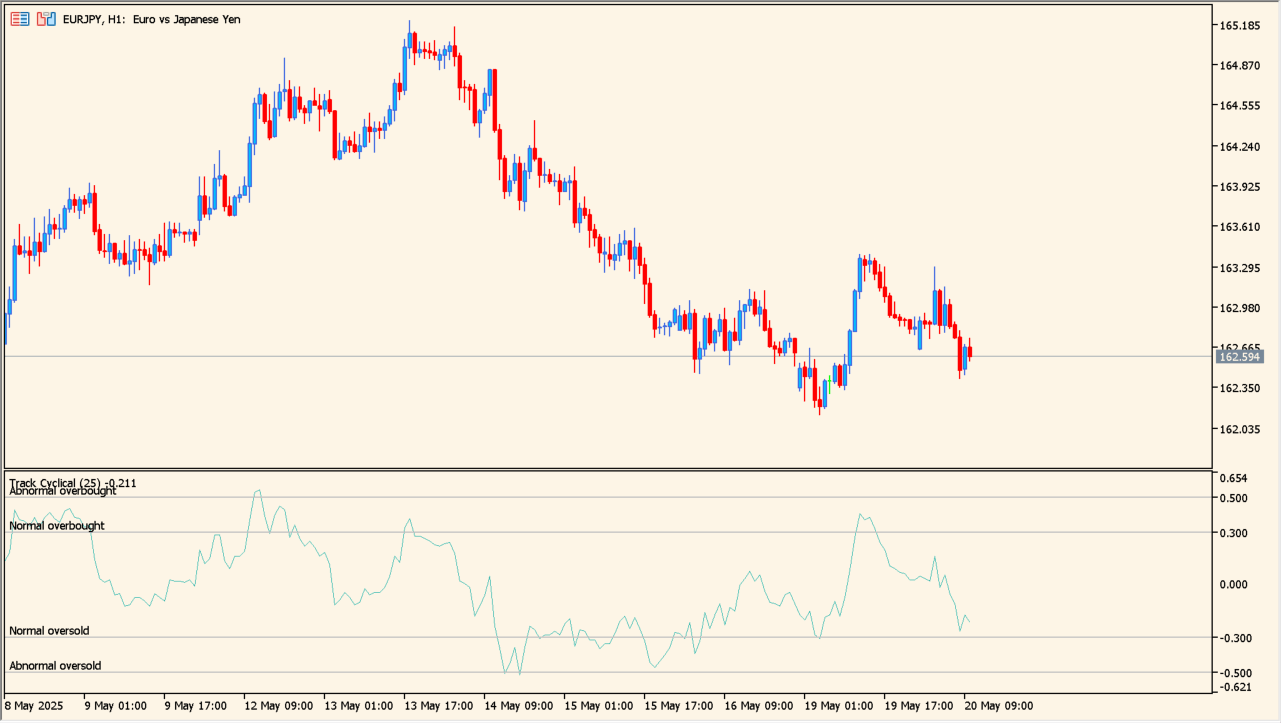
Track_Cyclical calculates 100 times the difference between applied price and its moving average, divided by the moving average. The result moves around zero and shows how far price has stretched from the average.
Several exceptional, abnormal, and normal overbought or oversold levels are available for reviewing overextension and possible cycle changes. These levels describe the display state, not a guaranteed reversal.
How to use Track_Cyclical
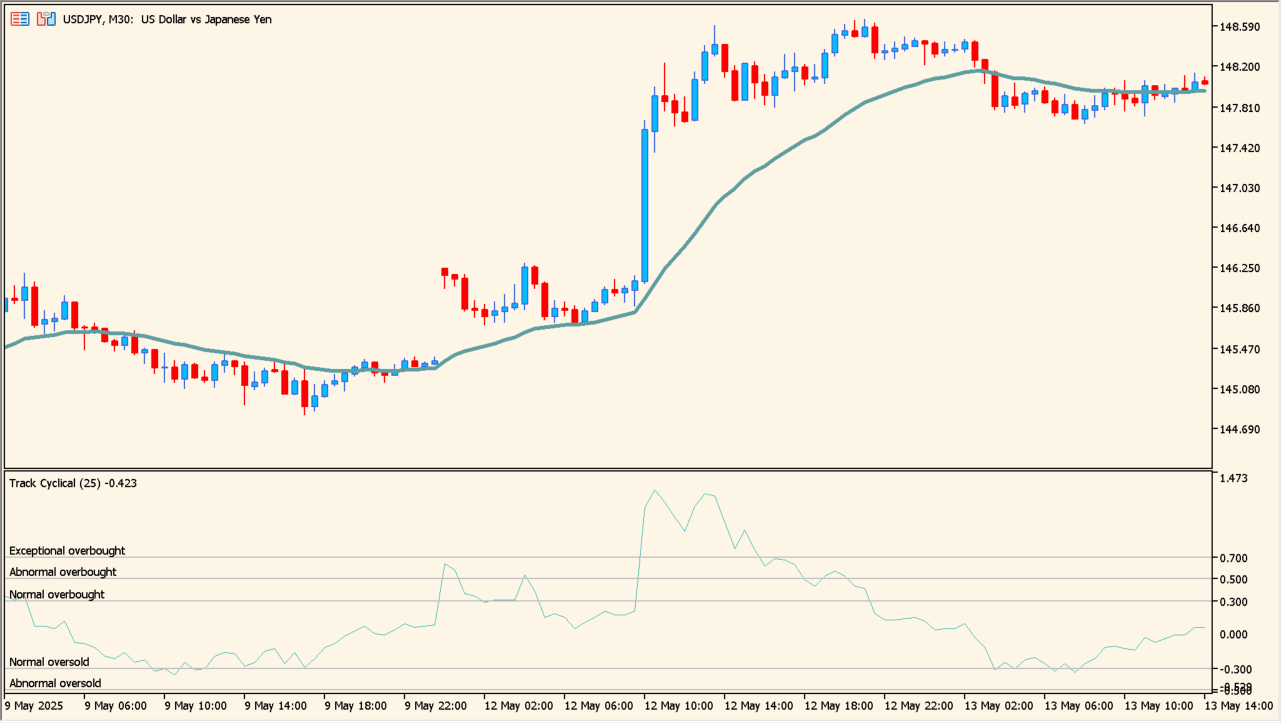
Apply Track_Cyclical to an MT5 chart and watch the oscillator as price moves farther above or below its moving average.
Set Period, Method, and Applied price first, then adjust the three overbought and three oversold thresholds to match the amount of movement you want to classify.
Where it helps
Expresses price deviation from its moving average in a comparable oscillator form.
Separates normal, abnormal, and exceptional extension levels.
Makes the relationship between price and its average visible above and below zero.
MT5 Indicator Parameters
The table below lists the available MT5 indicator parameters. You can customize these options in the MetaTrader Inputs dialog to match your trading preferences.
| Parameter | Description |
|---|---|
| InpPeriod | Sets this calculation or display option. Default: 25. |
| InpMethod | Controls this indicator option. Default: MODE_SMA. |
| InpAppliedPrice | Sets this calculation or display option. Default: PRICE_CLOSE. |
| InpOverboughtExept | Controls this indicator option. Default: 0.7. |
| InpOverboughtAbnormal | Controls this indicator option. Default: 0.5. |
| InpOverboughtNormal | Controls this indicator option. Default: 0.3. |
| InpOversoldNormal | Controls this indicator option. Default: -0.3. |
| InpOversoldAbnormal | Controls this indicator option. Default: -0.5. |
| InpOversoldExept | Controls this indicator option. Default: -0.7. |
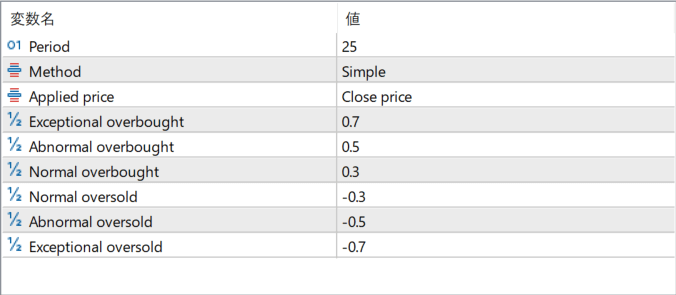
The screenshot above shows the default input parameters in the MT5 settings window.
How to Install .ex5 Indicator in MetaTrader 5
- Download the ZIP file and extract it.
- In MT5, select File → Open Data Folder.
- Open MQL5 → Indicators and copy the EX5 or MQ5 file into it.
- If the package includes library files, copy them to MQL5 → Libraries. Copy TPL files to the top-level templates folder.
- Restart MT5, find the indicator in the Navigator, and drag it onto a chart.
Test the tool on a demo account first. File contents and required folders can vary between packages.