What is trend-lord?
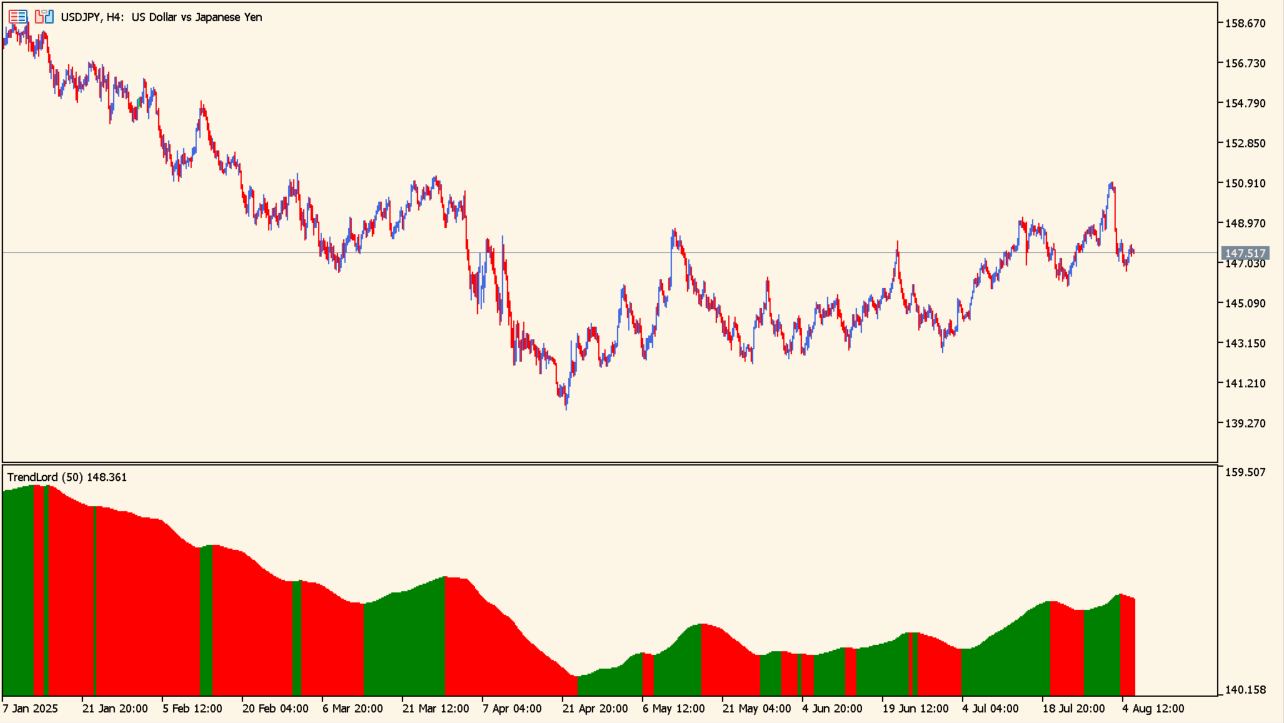
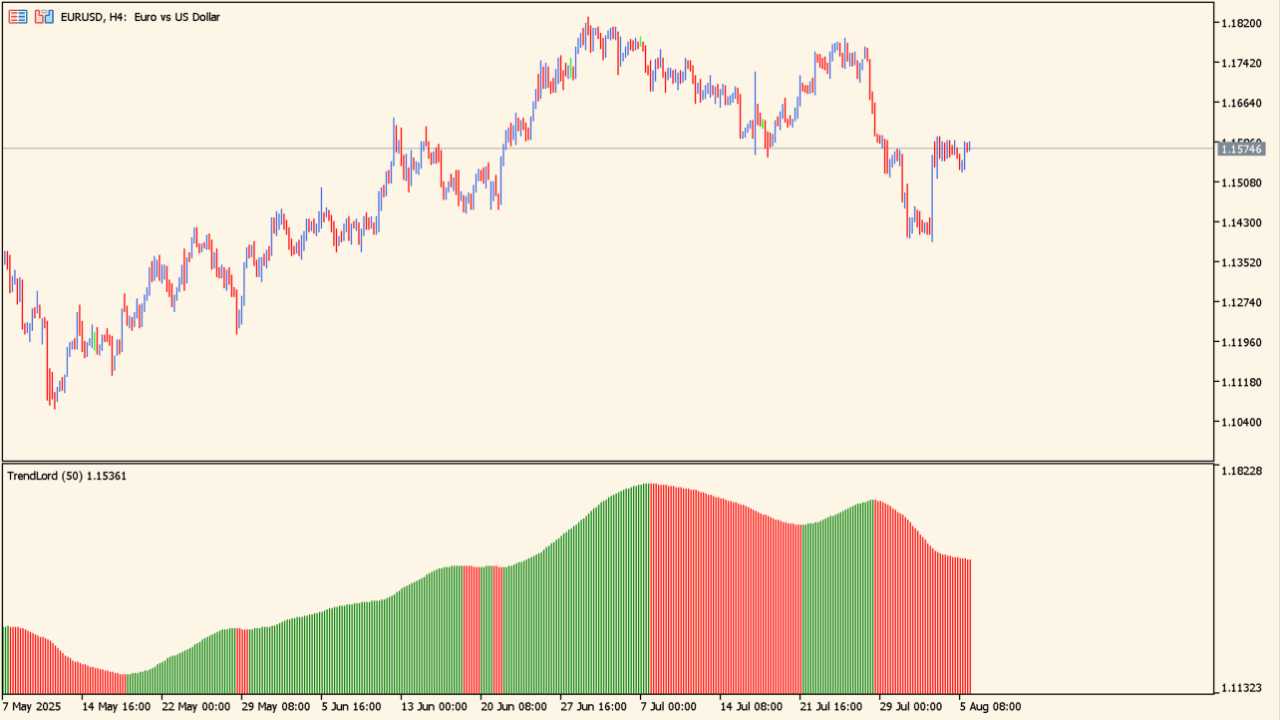
The pane shows green and red bars below the price chart.
trend-lord draws a histogram in a separate MT5 pane, using green and red bars whose height reflects the size of the reading.
Period sets the calculation length and Applied price selects the price the calculation runs on.
How to use trend-lord
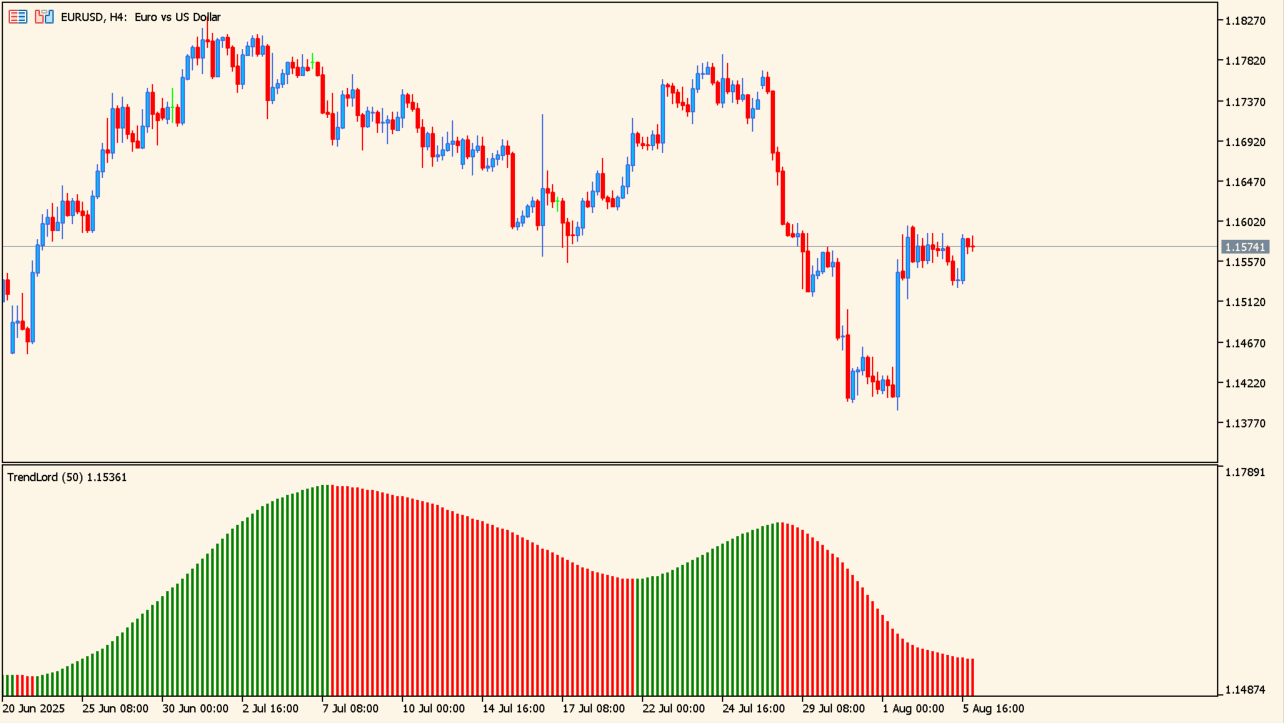
The height of the bars changes while the color stays the same.
Add the indicator below an MT5 chart and read the bar color alongside the candles above. A change from green to red, or back, marks a change in the histogram state.
Compare the height of successive bars to see whether the reading is growing or shrinking while the color stays the same.
Where it helps
Color and height sit in the same pane, so neither has to be collected from a second tool.
The color changes at a defined point, which places the change on a single bar rather than leaving it to impression.
Falling height under an unchanged color is visible on its own, separately from the green-to-red change.
MT5 Indicator Parameters
The table below lists the available MT5 indicator parameters. You can customize these options in the MetaTrader Inputs dialog to match your trading preferences.
| Parameter | Description |
|---|---|
| Period | Sets the trend calculation period. |
| Applied price | Selects the price used for the calculation. |
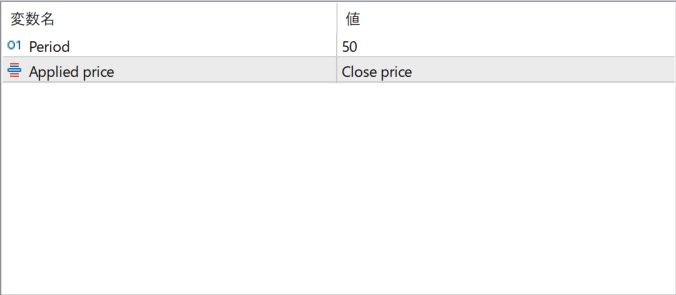
The screenshot above shows the default input parameters in the MT5 settings window.
How to Install .ex5 Indicator in MetaTrader 5
- Download the ZIP file and extract it.
- In MT5, select File → Open Data Folder.
- Open MQL5 → Indicators and copy the EX5 or MQ5 file into it.
- If the package includes library files, copy them to MQL5 → Libraries. Copy TPL files to the top-level templates folder.
- Restart MT5, find the indicator in the Navigator, and drag it onto a chart.
Test the tool on a demo account first. File contents and required folders can vary between packages.