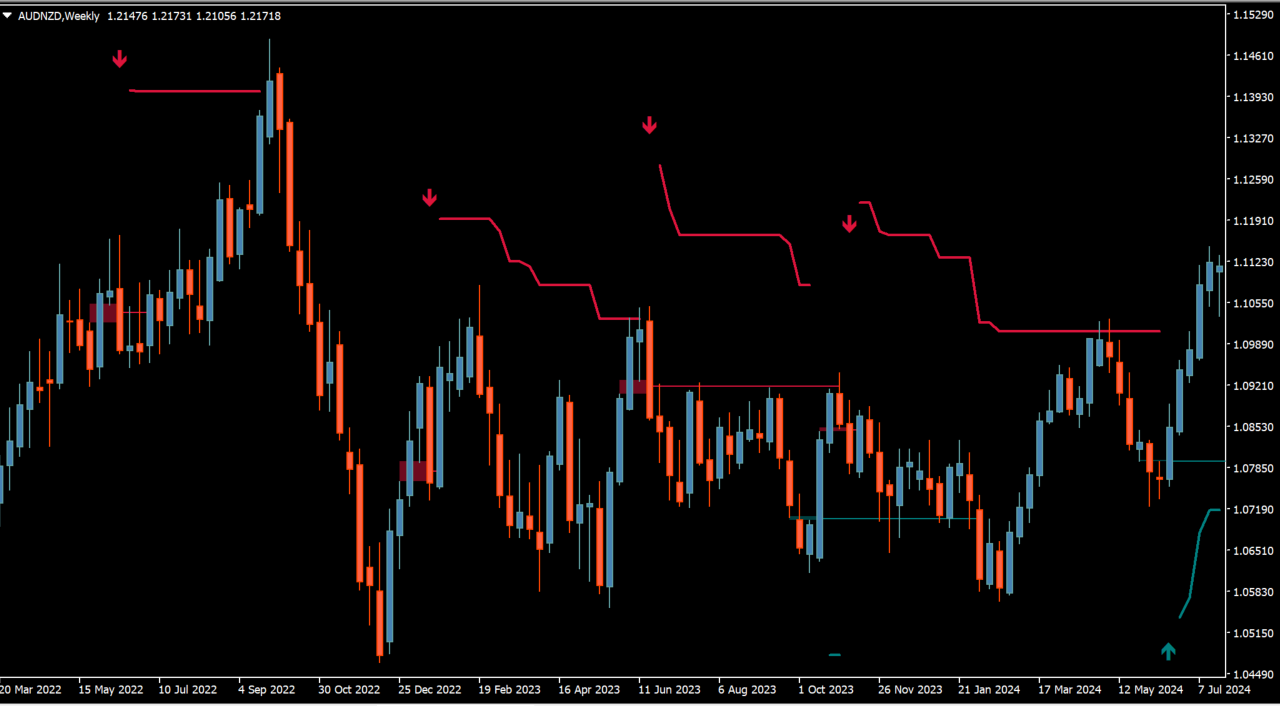
What is LuxAlgo – FVG Instantaneous Mitigation Signals?
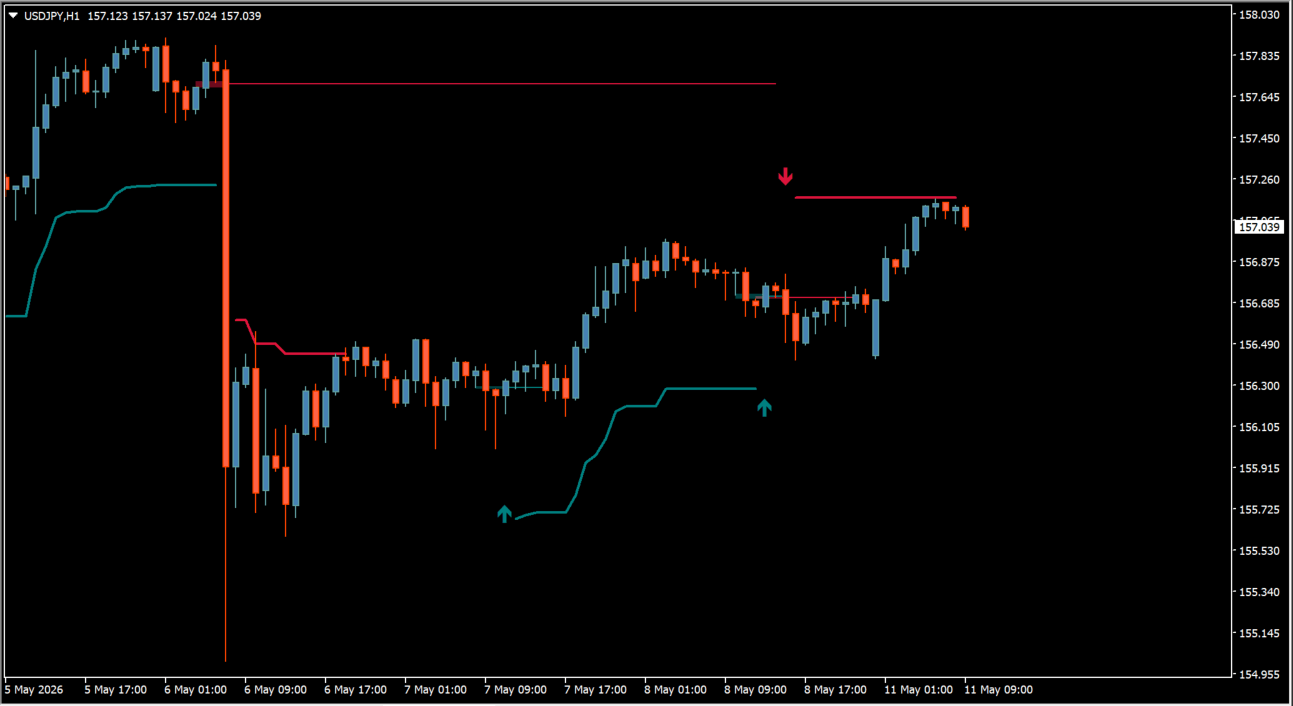
LuxAlgo – FVG Instantaneous Mitigation Signals identifies Fair Value Gap (FVG) areas and draws bullish and bearish elements with independent colors. The display can include average lines, TP/SL areas, and a trailing-stop representation.
The plotted areas describe the indicator’s FVG calculation. They should be reviewed with surrounding highs, lows, and market structure rather than treated as a fixed trade outcome.
How to use LuxAlgo – FVG Instantaneous Mitigation Signals
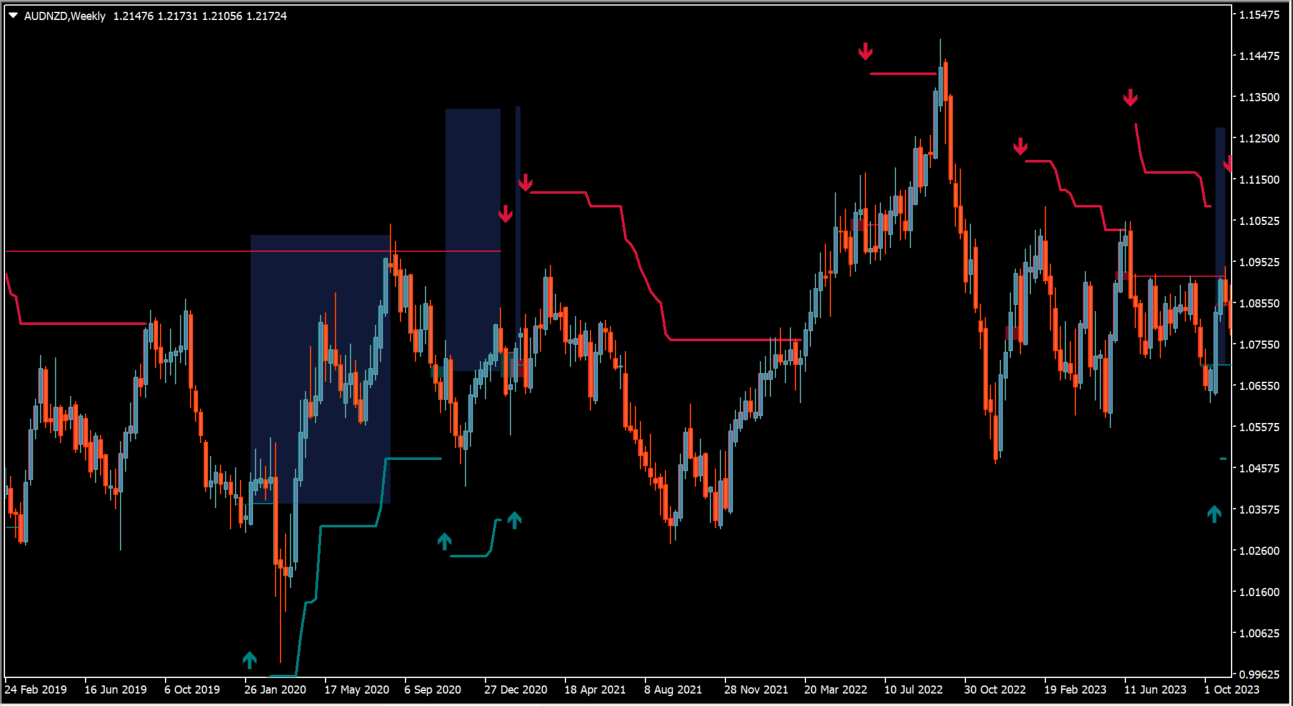
Review the bullish and bearish FVG markings with their average lines and the visible price structure. If TP/SL areas are enabled, keep them separate from the FVG itself: they are configurable display elements.
FVG Width Filter controls the smallest FVG retained. The TP/SL, Trailing Stop, and Style groups control their respective drawn elements.
Where it helps
Independent switches and colors control the two FVG directions.
Average lines and areas can remain visible with the detected gap.
TP/SL, trailing-stop, and style controls are organized separately.
MT4 Indicator Parameters
The table below lists the available MT4 indicator parameters. You can customize these options in the MetaTrader Inputs dialog to match your trading preferences.
| Parameter | Description |
|---|---|
| Parameters ######################### | Parameter settings section label. |
| FVG Width Filter | Sets the minimum width retained for an FVG. Default: 0.0. |
| TP/SL ############################## | TP/SL settings section label. |
| TP Area | Shows or hides the TP area. Default: false. |
| TP Multiplier | Sets the TP distance multiplier. Default: 4.0. |
| TP Color | Sets the TP display color. Default: RoyalBlue. |
| SL Area | Shows or hides the SL area. Default: false. |
| SL Multiplier | Sets the SL distance multiplier. Default: 2.0. |
| SL Color | Sets the SL display color. Default: Gray. |
| Trailing Stop ####################### | Trailing-stop settings section label. |
| Reset Trailing Stop | Selects when the trailing stop resets. Default: Every Signals. |
| Trailing Stop Multiplier | Sets the trailing-stop multiplier. Default: 3.0. |
| Style ############################# | Style settings section label. |
| Bullish IMFVG | Shows or hides bullish IMFVG markings. Default: true. |
| Bullish Color | Sets the bullish display color. Default: Teal. |
| Bullish Average | Shows or hides the bullish average line. Default: true. |
| Bearish IMFVG | Shows or hides bearish IMFVG markings. Default: true. |
| Bearish Color | Sets the bearish display color. Default: Crimson. |
| Bearish Average | Shows or hides the bearish average line. Default: true. |
| Draw Candlesticks (Chart on foreground has...) | Controls whether candles are drawn in front of the display. Default: true. |
| Candle Width | Sets the candle width used by the display. Default: 3. |
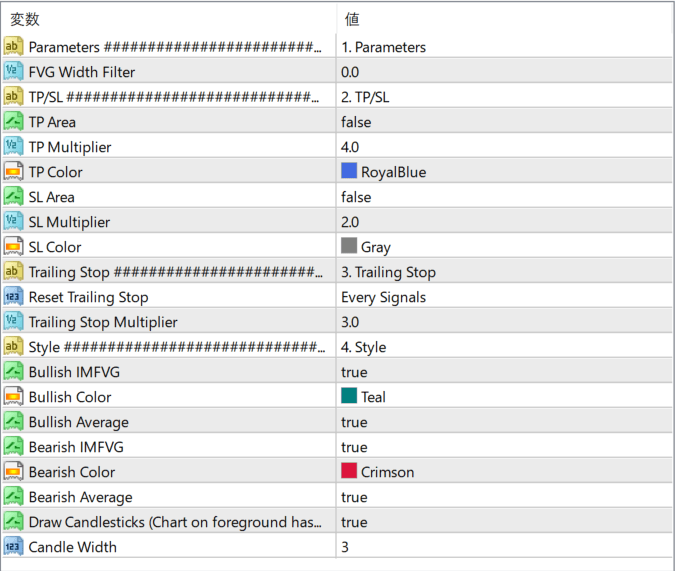
The screenshot above shows the default input parameters in the MT4 settings window.
How to Install .ex4 Indicator in MetaTrader 4
- Download the ZIP file and extract it.
- In MT4, select File → Open Data Folder.
- Open MQL4 → Indicators and copy the EX4 or MQ4 file into it.
- If the package includes library files, copy them to MQL4 → Libraries. Copy TPL files to the top-level templates folder.
- Restart MT4, find the indicator in the Navigator, and drag it onto a chart.
Test the tool on a demo account first. File contents and required folders can vary between packages.


