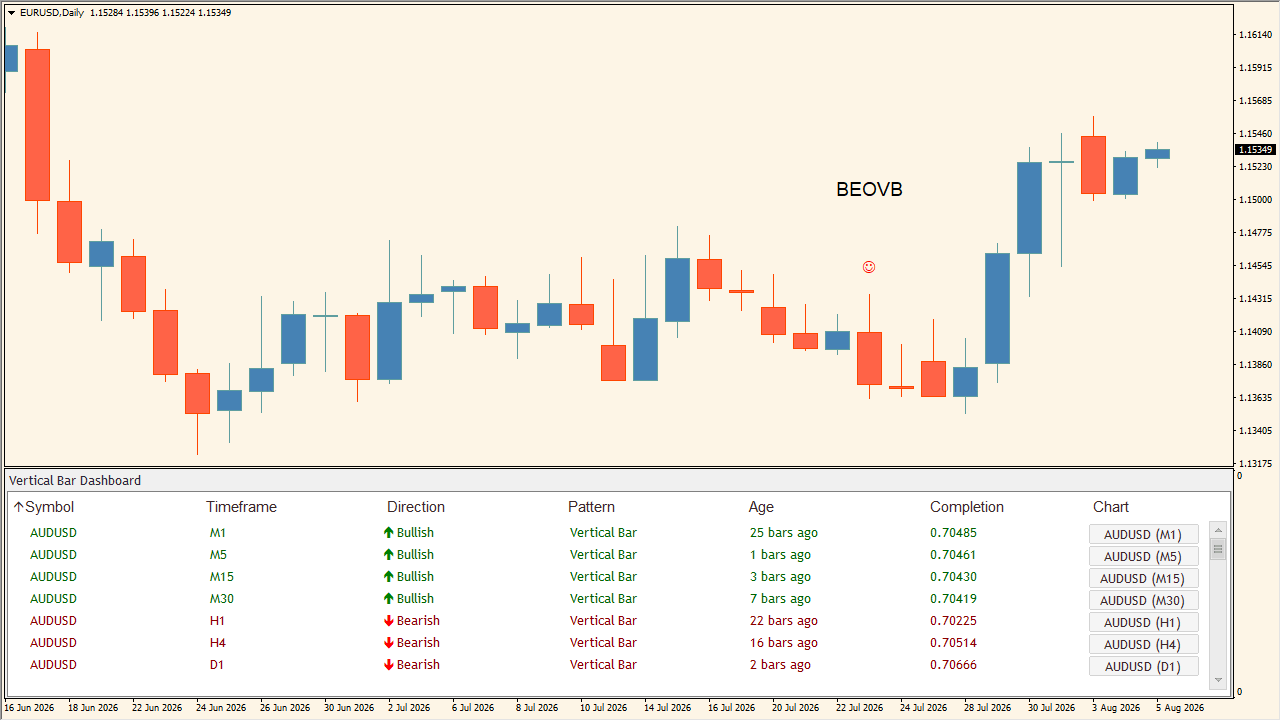
What is Vertical Bar Dashboard?
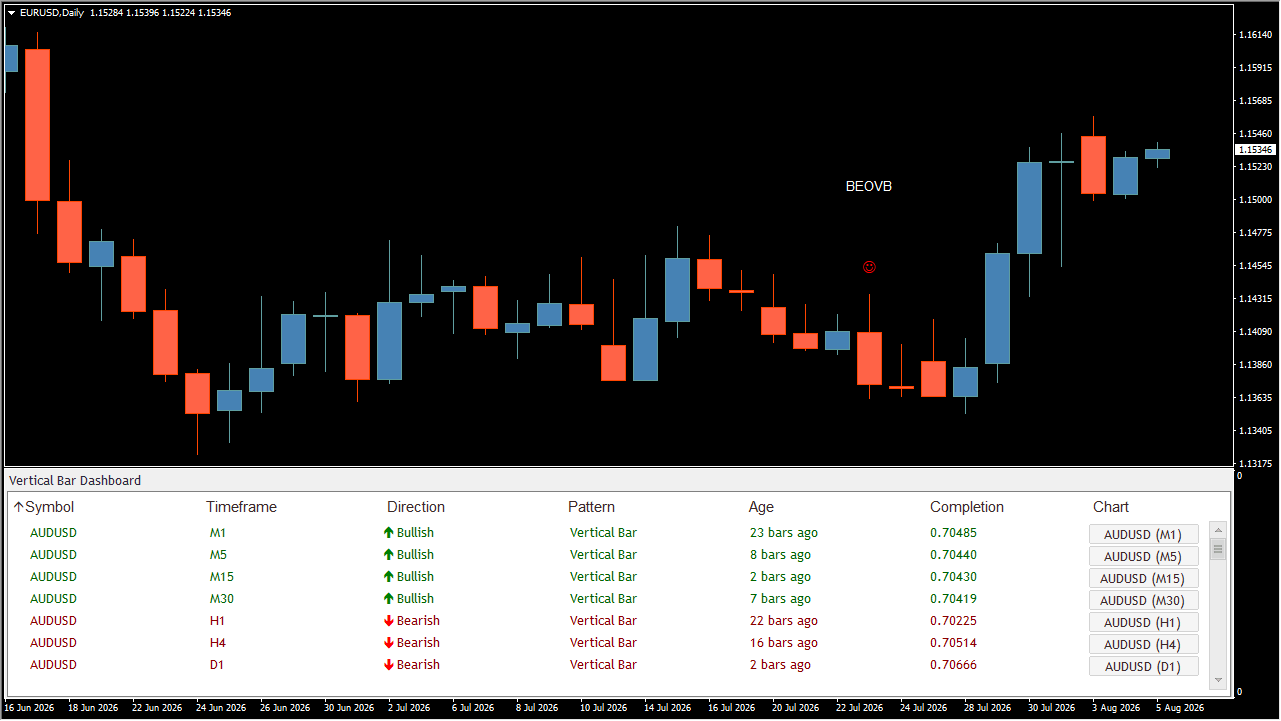
Vertical Bar Dashboard is an MT4 subwindow dashboard that automatically detects Vertical Bar engulfing patterns across multiple currency pairs and M1 through MN timeframes.
How to use Vertical Bar Dashboard
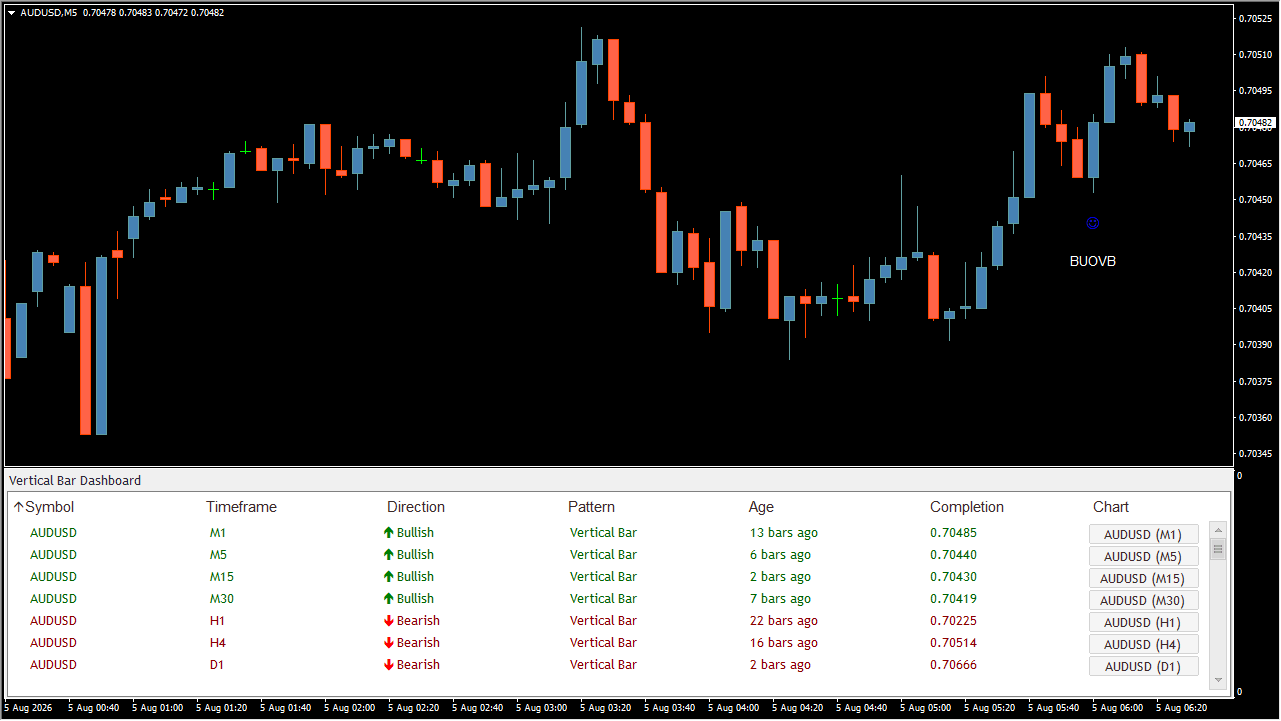
The chart draws Symbol, Timeframe, Direction, Age, Completion, and Chart controls; Direction identifies BUOVB or BEOVB while Age records the confirmed bar. Check Direction and Age, then use the Chart control to inspect the corresponding candlestick pattern on its symbol and timeframe.
Where it helps
MT4 Indicator Parameters
The table below lists the available MT4 indicator parameters. You can customize these options in the MetaTrader Inputs dialog to match your trading preferences.
| Parameter | Description |
|---|---|
| . | Configuration group. |
| Symbols | Sets the currency-pair list monitored by the dashboard. Default: EURUSD, GBPUSD, AUDUSD, USDCAD, USDCHF. |
| Is M1 Timeframe Enabled | Controls whether M1 pattern detection and display are enabled. Default: true. |
| Is M5 Timeframe Enabled | Controls whether M5 pattern detection and display are enabled. Default: true. |
| Is M15 Timeframe Enabled | Controls whether M15 pattern detection and display are enabled. Default: true. |
| Is M30 Timeframe Enabled | Controls whether M30 pattern detection and display are enabled. Default: true. |
| Is H1 Timeframe Enabled | Controls whether H1 pattern detection and display are enabled. Default: true. |
| Is H4 Timeframe Enabled | Controls whether H4 pattern detection and display are enabled. Default: true. |
| Is D1 Timeframe Enabled | Controls whether D1 pattern detection and display are enabled. Default: true. |
| Is W1 Timeframe Enabled | Controls whether W1 pattern detection and display are enabled. Default: true. |
| Is MN Timeframe Enabled | Controls whether MN pattern detection and display are enabled. Default: true. |
| Sort By | Selects the dashboard sorting field. Default: Symbol. |
| Sort Type | Selects ascending or descending dashboard sorting. Default: Ascendent. |
| . | Configuration group. |
| Vertical Bar | Controls Vertical Bar pattern detection. Default: On. |
| Show Text | Controls whether BUOVB and BEOVB chart text is shown. Default: true. |
| Text Color | Sets the chart-text color. Default: White. |
| Text Size | Sets the chart-text font size. Default: 10. |
| Text Font | Sets the chart-text font. Default: Arial. |
| Text Info BE | Sets the bearish Vertical Bar text label. Default: BEOVB. |
| Text Info BU | Sets the bullish Vertical Bar text label. Default: BUOVB. |
| . | Configuration group. |
| Show Mark | Controls whether chart pattern marks are shown. Default: true. |
| Mark Size | Sets the chart-mark size. Default: 1. |
| Mark Up Color | Sets the bullish chart-mark color. Default: Blue. |
| Mark Dn Color | Sets the bearish chart-mark color. Default: Red. |
| . | Configuration group. |
| Alert On | Controls whether Vertical Bar alerts are enabled. Default: true. |
| Alert Title | Sets the alert title text. Default: OVB-Signal. |
| Sound Alert | Controls whether an alert sound is played. Default: true. |
| Sound File | Sets the sound file played for alerts. Default: alert.wav. |
| Popup Alert | Controls whether an on-screen alert is shown. Default: true. |
| Email Alert | Controls whether an email alert is sent for a pattern. Default: true. |
| Push Alert | Controls whether a push alert is sent to mobile MT4. Default: true. |
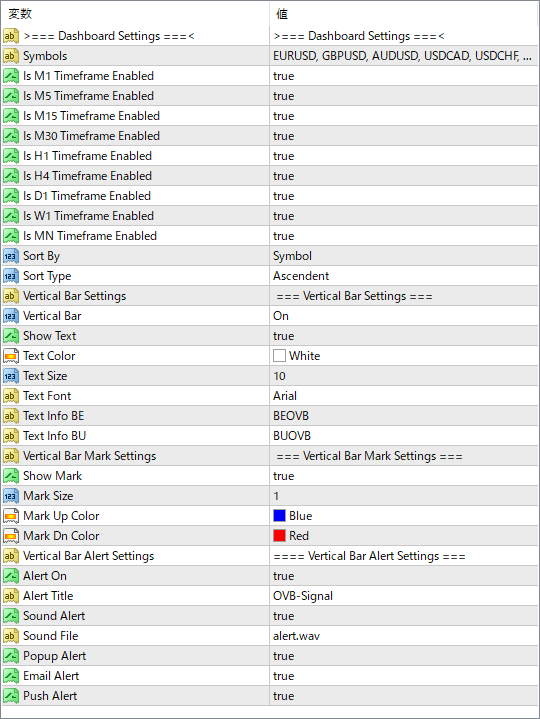
The screenshot above shows the default input parameters in the MT4 settings window.
How to Install .ex4 Indicator in MetaTrader 4
- Download the ZIP file and extract it.
- In MT4, select File → Open Data Folder.
- Open MQL4 → Indicators and copy the EX4 or MQ4 file into it.
- If the package includes library files, copy them to MQL4 → Libraries. Copy TPL files to the top-level templates folder.
- Restart MT4, find the indicator in the Navigator, and drag it onto a chart.
Test the tool on a demo account first. File contents and required folders can vary between packages.


